
Create API Key
Generate a new API key with expiration options.
Creating an API Key
Navigate to API Keys → Create or click the + Create Key button.
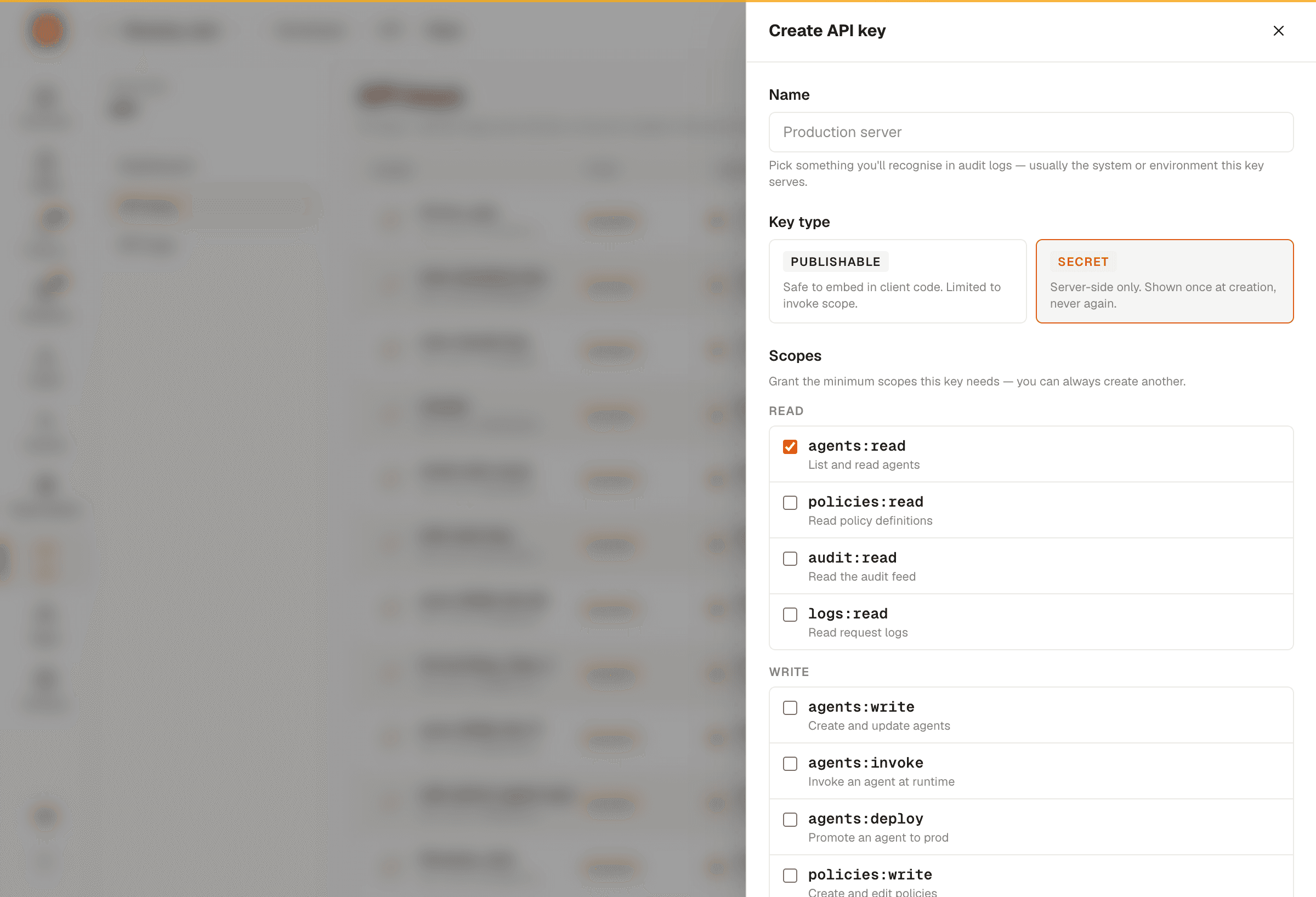
Step 1 - Name
Enter a descriptive name for the API key (e.g., "Production SDK", "Development Testing").
Step 2 - Expiration
Choose an expiration period:
| Option | Duration |
|---|---|
| 1 Day | Expires in 24 hours |
| 7 Days | Expires in 1 week |
| 30 Days | Expires in 1 month |
| Never | No expiration |
Step 3 - Copy Your Key
After creation, the full API key is displayed once. Copy it immediately.
The full API key is only shown once at creation time. If you lose it, you'll need to create a new key. Store it securely - never commit it to source control.
Organization Limit
Each organization can have up to 10 API keys active at a time. The create button is disabled when the limit is reached.
Endpoint Logs
Navigate to API Keys → Endpoint Logs for detailed usage analytics.
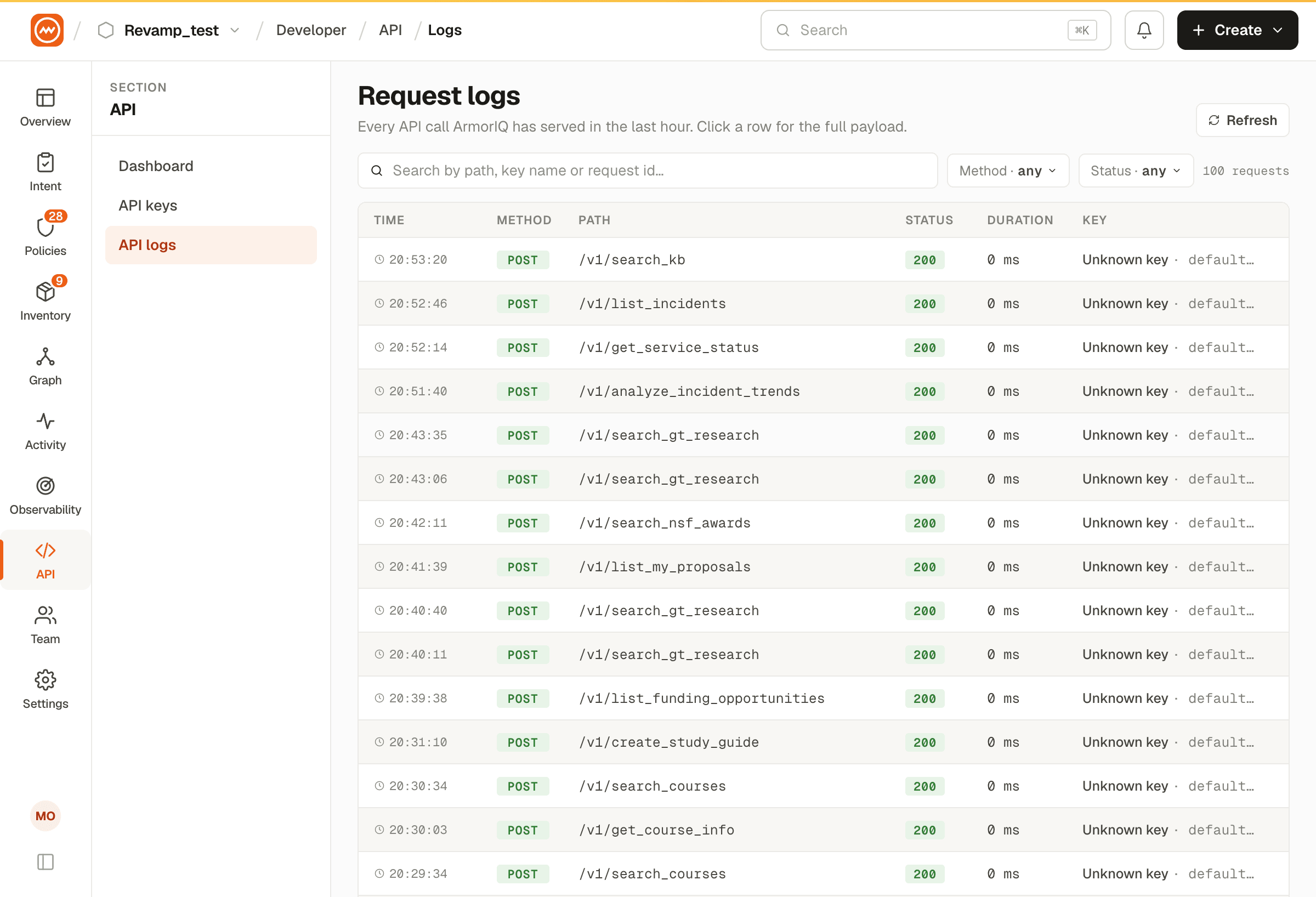
The endpoint logs show:
- Endpoint path that was called
- HTTP method (GET, POST, etc.)
- Request count per endpoint
- Last access timestamp
- API key names that made the calls
Filtering
- Search by endpoint path
- Filter by status (success/error)
- Filter by HTTP method
- Filter by date range
Using API Keys
API keys are used to authenticate SDK requests. Include the key in the X-API-Key header:
curl -X POST https://api.armoriq.ai/iap/sdk/token \
  -H "X-API-Key: ak_your_api_key_here" \
  -H "Content-Type: application/json" \
  -d '{"plan": {...}}'
For complete SDK integration instructions, see the SDK & CLI Quickstart - sixty seconds from this key to your first authorized tool call.