
Policy Builder
Create policies visually with the canvas-based policy builder.
Creating a Policy
Navigate to Policies → New or click the + Create Policy button.
Visual Policy Builder
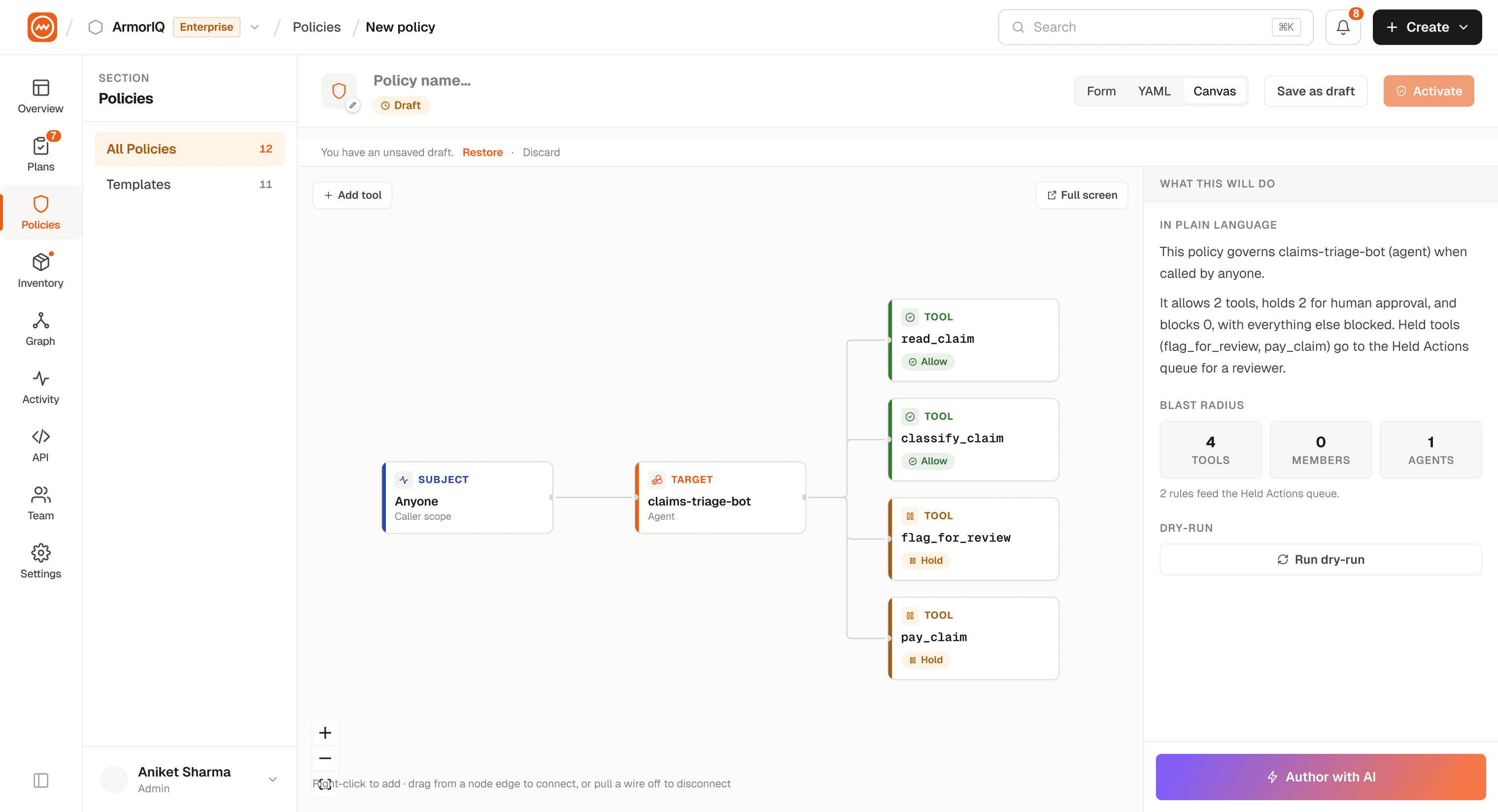
The Policy Builder is a canvas-based visual tool for creating access policies. It provides an intuitive drag-and-drop interface.
ArmorIQ also offers Policy Studio - a form-based editor with section-by-section fields and live YAML preview. Use the Policy Builder for visual, connection-based workflows and Policy Studio for detailed field-by-field authoring.
Step 1 - Add Entities to Canvas
Drag entities from the sidebar onto the canvas:
| Entity Type | Description |
|---|---|
| Agents | AI agents in your organization |
| MCP Servers | Registered MCP servers |
| Users | Organization members |
Step 2 - Draw Connections
Connect entities by drawing edges between them. For example:
- Connect an Agent to an MCP Server to define which server the agent can access
- Connect a User to an Agent to define who can operate the agent
Step 3 - Configure Member Rules
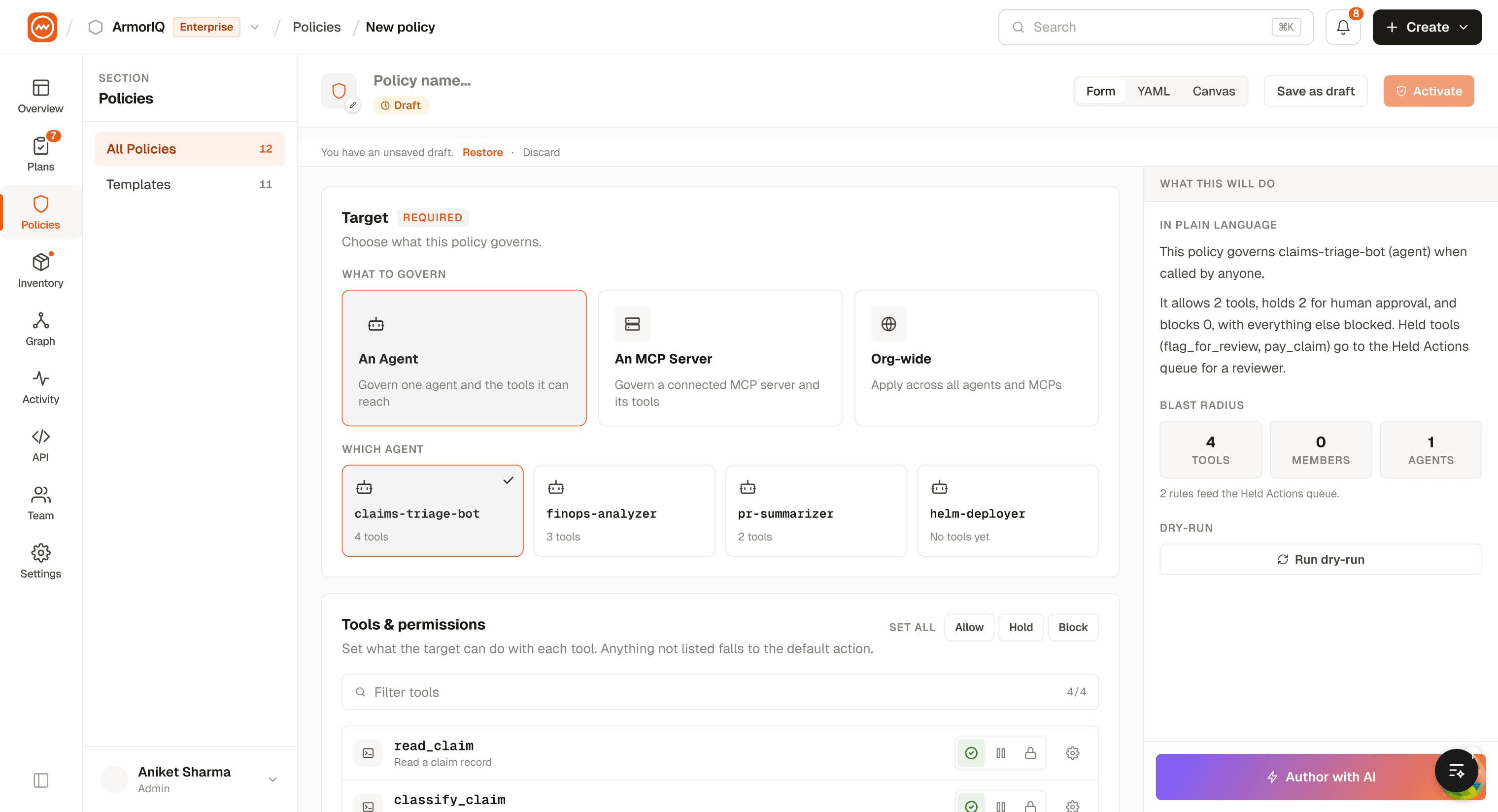
For each connection, configure detailed access rules:
Permissions
Per-resource CRUD permissions:
| Permission | Description |
|---|---|
| Read | Can read/query the resource |
| Create | Can create new entries |
| Update | Can modify existing entries |
| Delete | Can remove entries |
Allowed Tools
Whitelist specific MCP tools that the member can invoke:
Use the Tools Browser modal to discover all available tools on the target MCP server, and select which ones to allow.
IP Whitelist
Restrict access to specific IP addresses:
192.168.1.0/24
10.0.0.0/8
203.0.113.42
Time Restrictions
Define when access is permitted:
- Allowed hours - e.g., 9:00 AM to 6:00 PM
- Allowed days - e.g., Monday through Friday
Rate Limiting
Set per-member request rate limits to prevent abuse.
Step 4 - Policy Settings
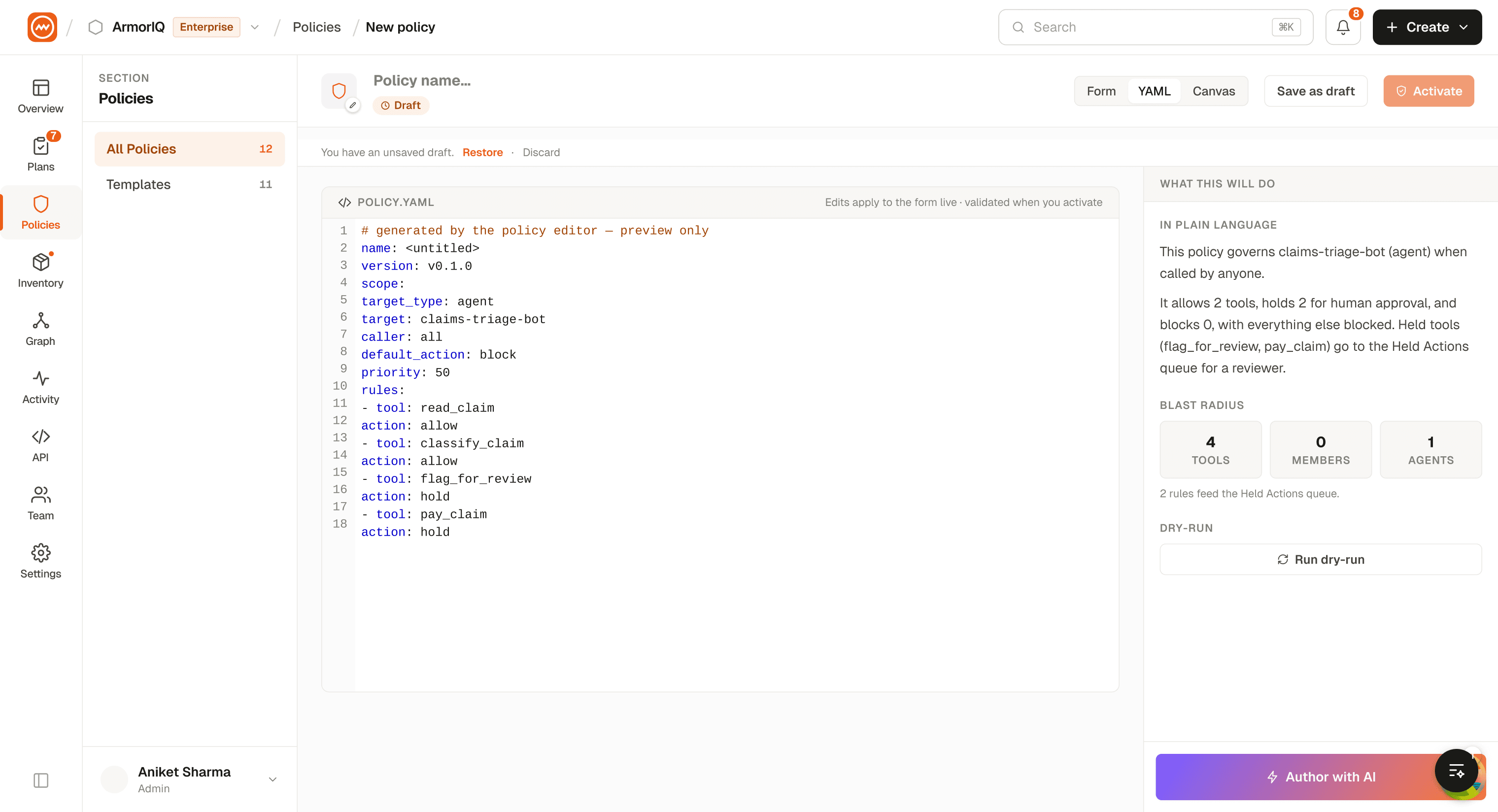
Configure global policy settings:
| Setting | Description |
|---|---|
| Policy Name | Descriptive name |
| Description | What this policy controls |
| Status | Active / Inactive / Draft |
| Priority | Numeric priority (higher priority policies override lower ones) |
| Activation Date | When the policy takes effect |
| Expiration Date | When the policy expires (optional) |
Step 5 - Save
Click Save Policy to create or update the policy.