
Single Policy Editor
Create or edit a policy with the form-based editor - metadata, scheduling, member rules, client rules, and YAML preview.
Overview
The Single Policy editor at Policies → Policy Studio (or /dashboard/policy-studio) provides a section-by-section interface for authoring policies. Each section maps to a part of the policy YAML.
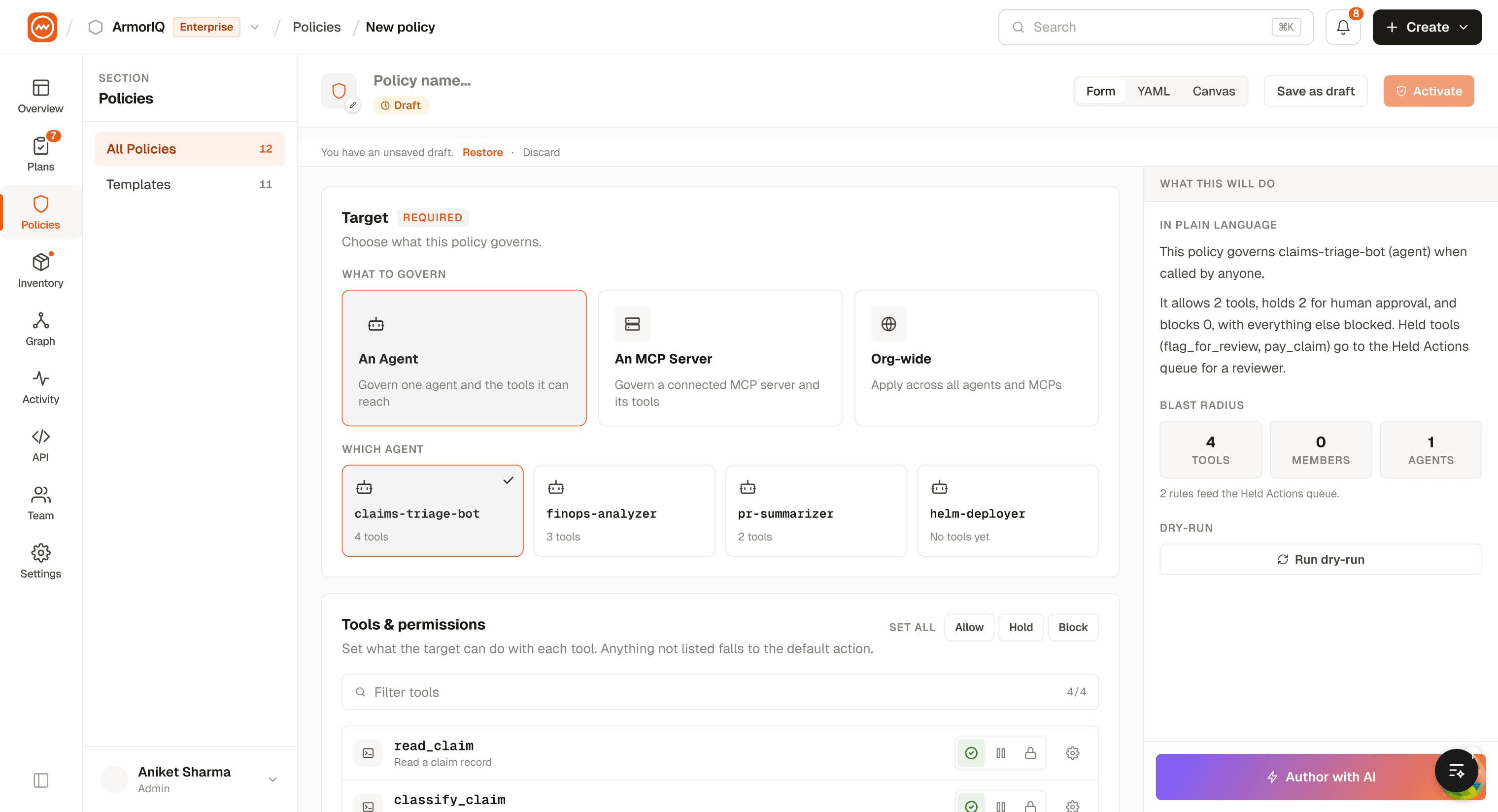
Editor Sections
The left panel provides a vertical tab list. Click any section to switch:
1. Metadata
| Field | Description |
|---|---|
| Policy Name | A descriptive name for the policy |
| Description | What this policy controls |
| Organization ID | Auto-filled with your current organization |
| Target Type | mcp_server or agent - what the policy applies to |
| Target ID | The specific server or agent this policy targets |
2. Scheduling & Defaults
| Field | Description |
|---|---|
| Status | draft, active, inactive, or expired |
| Priority | Numeric priority - higher values override lower |
| Default Enforcement | The default action when no specific rule matches (allow, block, hold, allow_log) |
| Activation Date | When the policy takes effect |
| Expiration Date | When the policy expires (optional) |
3. Member Rules
Define per-member access controls. For each member rule:
- Member identifier (email or ID)
- Allowed tools - select from the target's available tools
- Enforcement action - override the default action for this member
- Amount thresholds - financial limits (if applicable)
- Velocity limits - rate limits per time window
- IP whitelist - restrict to specific IPs
- Time restrictions - allowed hours and days
4. Client Rules
Define per-OAuth-client access controls:
- Client ID - the OAuth client
- Permissions - Read, Create, Update, Delete per resource
- Allowed tools - whitelist specific tools
- IP whitelist - restrict by IP
- Rate limit - requests per time window
5. YAML Editor
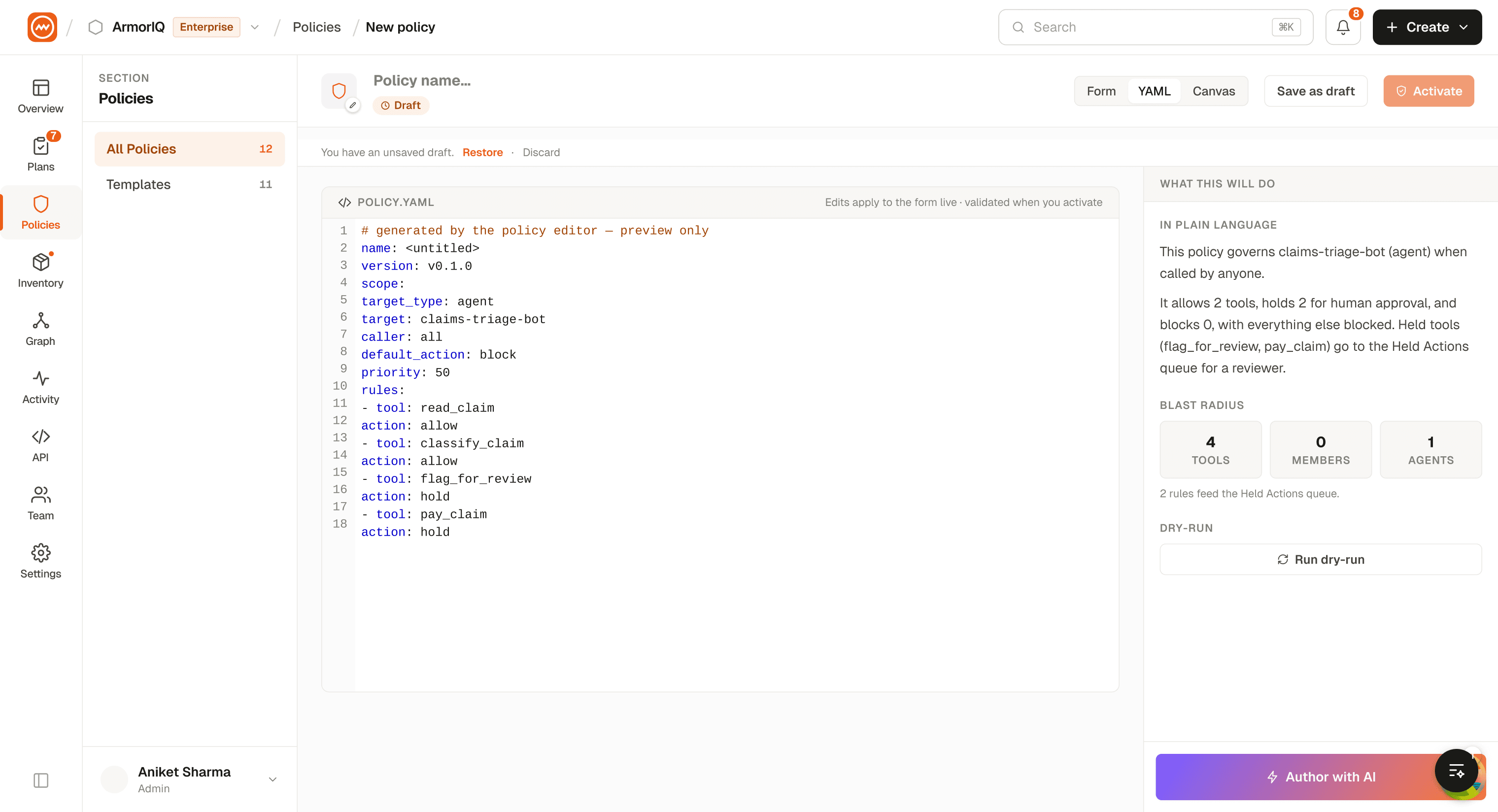
The YAML editor shows the compiled policy in real time. Changes are bidirectional - editing in the form updates the YAML, and editing the YAML updates the form.
- Copy - Copy the YAML to clipboard
- Download - Download as a
.yamlfile - Resizable - Drag the panel divider to resize
MCP Tool Loading
When you select a target MCP server, the editor automatically fetches the server's available tools. These tools populate the dropdowns in Member Rules and Client Rules, so you can select exactly which tools to allow or restrict.
Draft Persistence
Policy Studio automatically saves your work-in-progress to browser localStorage. If you navigate away and come back, your draft is restored. Use the Clear Draft action to start fresh.
Editing an Existing Policy
Navigate to /dashboard/policy-studio/:policyId to load an existing policy into the editor. All fields populate from the saved policy, and you can modify and re-save.
Saving
Click Save Policy to create a new policy or update an existing one. The policy is sent to the backend and becomes available for enforcement based on its status and activation date.